
How to Use Business Calendar Generator
Business Calendar Generator lets you create monthly business calendar images in your browser and download them as PNG files. No account registration is required.
The generated images can be used directly for social media posts or printed for in-store display.
Steps
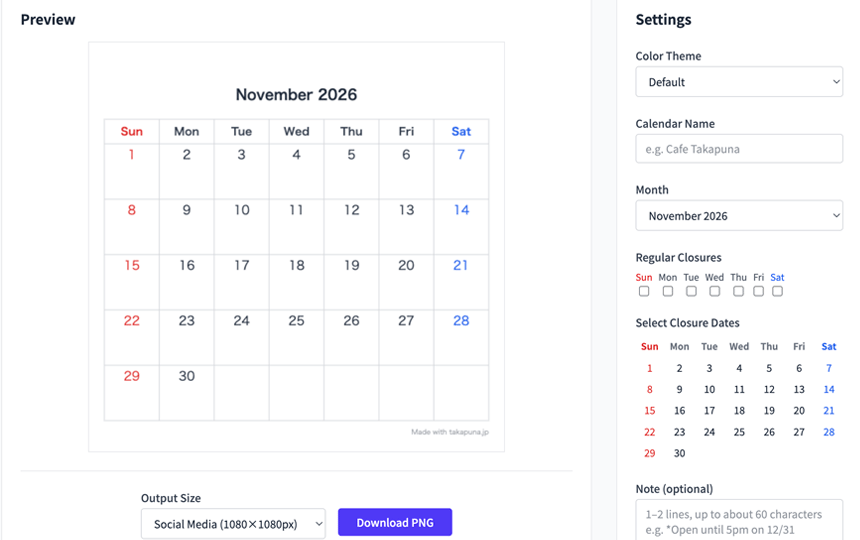
Screen Overview
The screen is split into "Settings" and "Preview". Changes you make on the right are reflected in the preview on the left in real time.
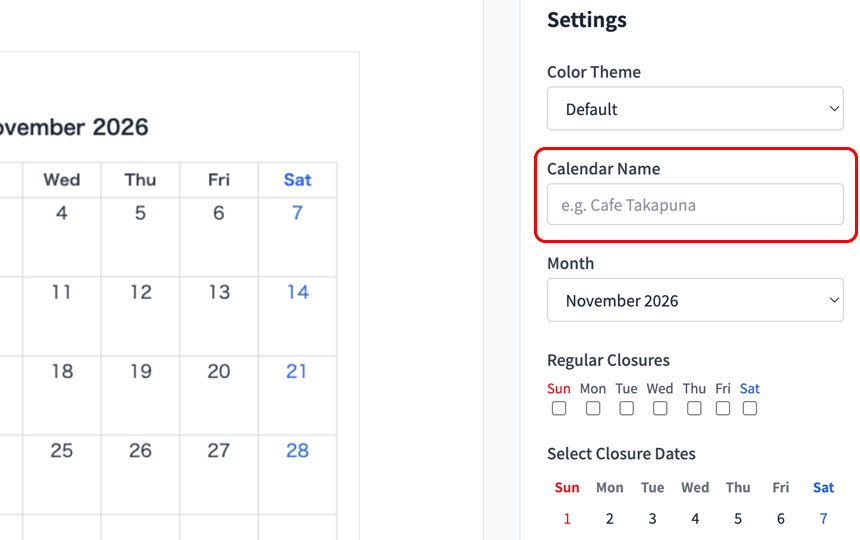
Enter a Calendar Name
Enter your business name or a title for the calendar. It will appear prominently at the top of the image.
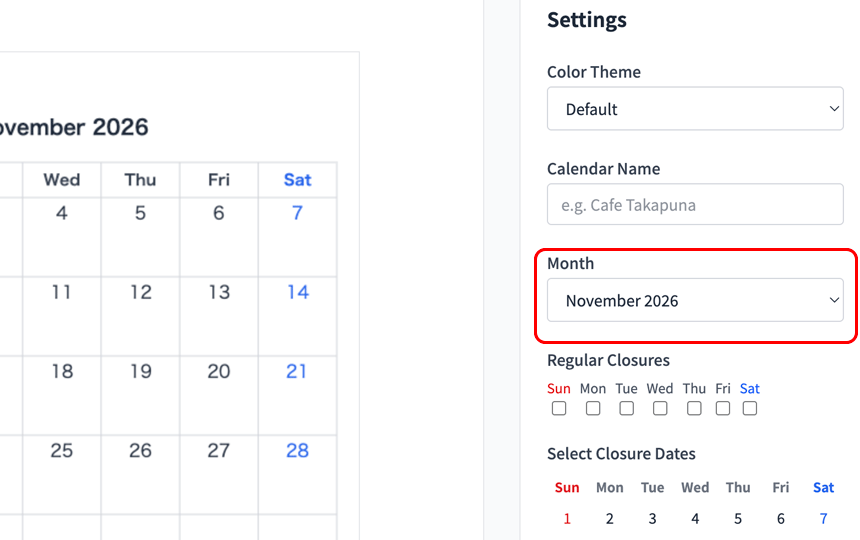
Select a Month
Choose the month you want to create a calendar for from the dropdown. You can select from the current month through to December of next year.
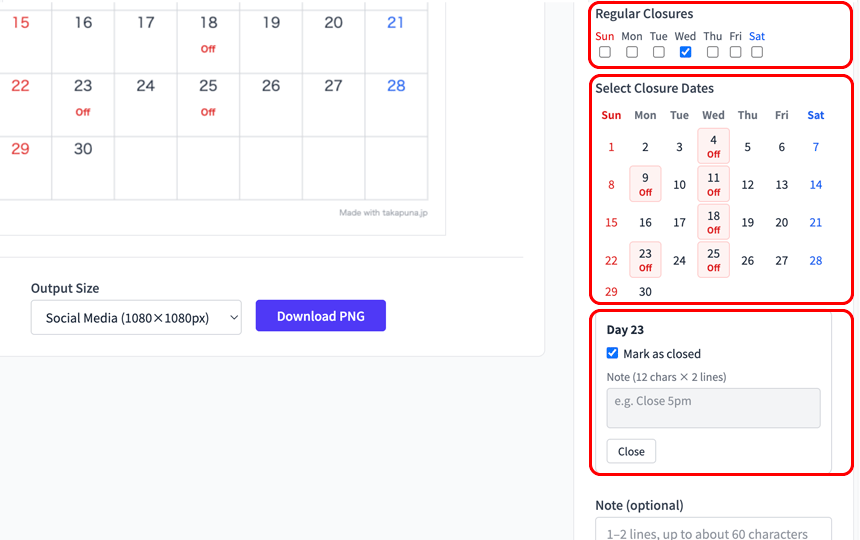
Set Closure Days
Use the day-of-week checkboxes to set regular closures (e.g. every Wednesday). For one-off changes, click individual dates on the mini calendar. Closed days are marked with "Off".
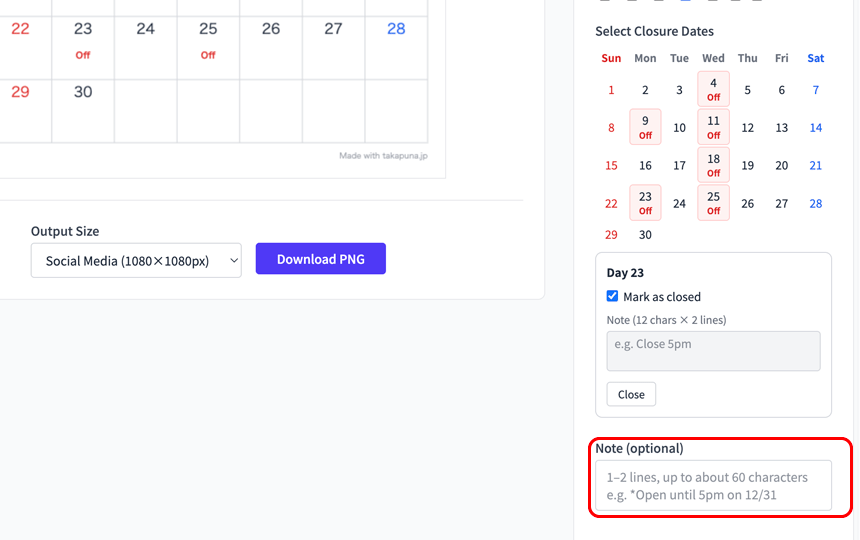
Add a Note (optional)
Add a short message such as "Open until 5pm on 12/31". It will be displayed below the calendar grid.
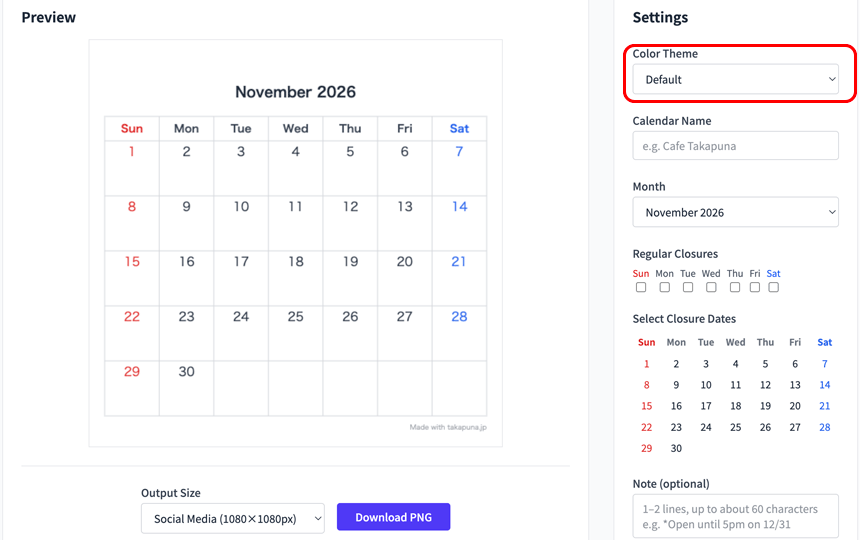
Choose a Color Theme
Pick a color theme that matches your business style. Default and Monotone are available.
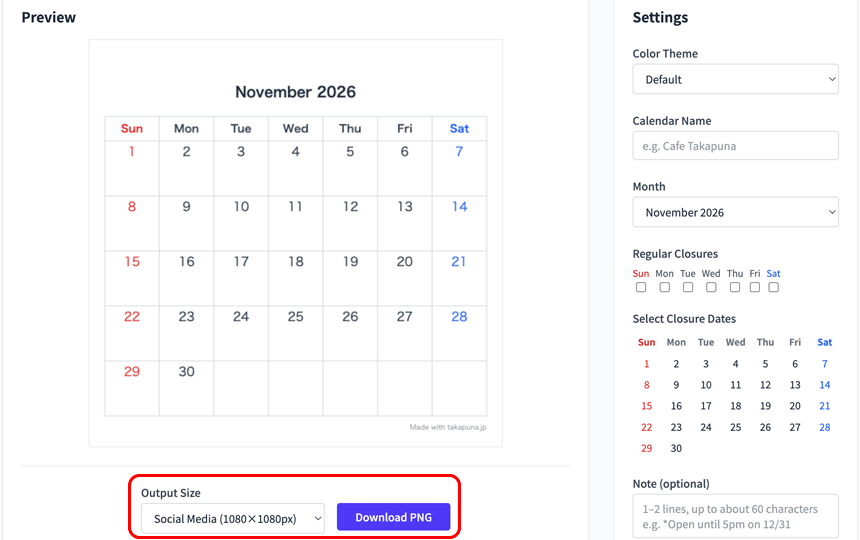
Download the PNG
Select an output size and press the download button to save the calendar as a PNG image. Two sizes are available: Social Media (1080×1080px) and A4 Landscape (1754×1240px).
Notes
All settings are reflected in the preview in real time, so you can fine-tune the result as you go.
Your data is not saved on any server. If you close the page or navigate away, your settings will be reset.